Introducing Glara MCP: access your AI visibility data from any AI assistant
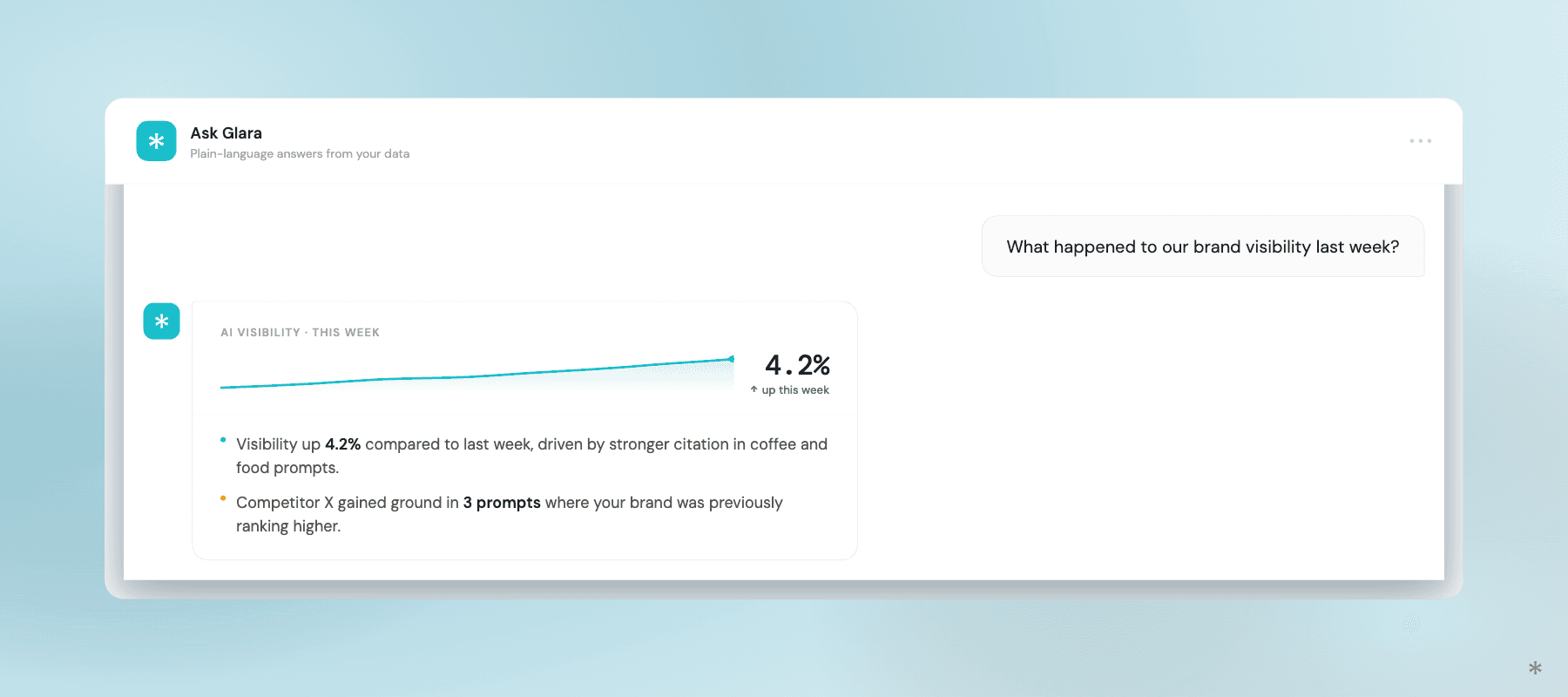
Glara MCP connects your AI visibility data directly to the AI tools you are already working in. Ask Claude what happened to your brand visibility last week, which competitors are gaining ground, or which prompts you are losing, and get the answer without leaving your assistant.
Glara Team
|

Every week, ecommerce teams open Glara, check their visibility data, pull the numbers they need, and then manually move that information somewhere else. Into a report. Into a Slack message. Into a brief for their content team.
Glara MCP removes those manual steps, and as of this week, it goes further than that.
You can now connect Glara to Claude, ChatGPT, Cursor, and VS Code through the Model Context Protocol. Your visibility data, competitor movements, citation sources, product performance, and sentiment scores all become accessible directly inside your AI assistant, in whatever format you need, without leaving the conversation. And you can now apply optimizations from the same chat, turning insights into store changes without switching context.
What MCP actually is
MCP stands for Model Context Protocol. It is an open standard that lets AI assistants connect to live external data sources and reason over them in real time.
In practice it means instead of opening Glara to check how your brand is performing, you ask your assistant. It pulls the data, reasons over it, and does something useful with it, whether that is drafting a report, summarizing competitive movements, flagging prompt losses, or formatting a weekly update for your team.
You do not need to be technical to use it. If you use Claude today, you can connect Glara in under five minutes.
What you can do with Glara MCP
Here are some of the workflows you can start running today.
Weekly visibility briefing without leaving Claude
Ask: "How did my brand visibility change last week and which competitors gained ground?" Your assistant pulls your visibility timeseries, competitor standings, and sentiment data and returns a structured summary you can share directly with your team. No dashboard visit. No manual export.
Prompt loss analysis
Ask: "Which prompts am I losing to competitors right now?" Your assistant surfaces the specific prompts where competitor visibility is outpacing yours, with the platform breakdown across ChatGPT, Perplexity, and Gemini. Brief your content team directly from the output.
Product visibility deep dive
Ask: "Which of my products are being recommended by AI and which are not?" Your assistant pulls your top products, their citation rates, and what is currently in your optimization focus so you know exactly where to prioritize.
Competitive snapshot before a meeting
Pull a live competitor visibility comparison before a brand review, agency call, or board update. Walk in with current data already summarized in the format you need.
Revenue and traffic attribution
Ask: "How much traffic and revenue is Glara attributing to AI search this month?" Get the answer in seconds without opening the app.
Apply optimizations without leaving the chat
As of this week, Glara MCP is no longer read-only. Ask your assistant to apply specific optimization tasks, work through a bulk set, or clear your optimization queue entirely, and it acts on your Glara data directly from the conversation. Ask it to fix a product description, update a set of meta tags, or work through everything in your current optimization list. The gap between insight and action just got a lot shorter.
What is available
Glara MCP gives your assistant access to tools covering visibility and competitors, citations and prompts, keyword performance, sentiment, platform breakdowns across OpenAI and Gemini, product data, traffic and revenue, and integration and optimization status. And now, optimization execution directly from the chat.
Access uses your own Glara login with the same brands and permissions as in the app..
How to connect
Server URL: https://api.glara.ai/mcp
Claude app: Settings, then Connectors, then Add custom connector, paste the URL, connect, log in, and approve.
Claude Code: run claude mcp add, transport http, glara, then the server URL in your terminal. In a Claude session open the MCP panel, authenticate, log in, and approve.
Cursor, VS Code, ChatGPT: add a custom remote MCP server with the same URL and log in to Glara when prompted.
Full setup guide at docs.glara.ai/mcp.
Once connected, ask your assistant: "What Glara tools do you have and what do they do?" to see everything available.
Start here
If you are already using Glara on a paid plan, you have everything you need to connect today. Setup takes under five minutes.
Not on Glara yet? Start free for 7 days at glara.ai or get your free AI brand report to see where your brand stands in AI search before you connect.

Start your free 7-day trial or book a demo to see how leading brands are winning in AI search.